
Beyond the app
Set up Siri Shortcuts for Petive
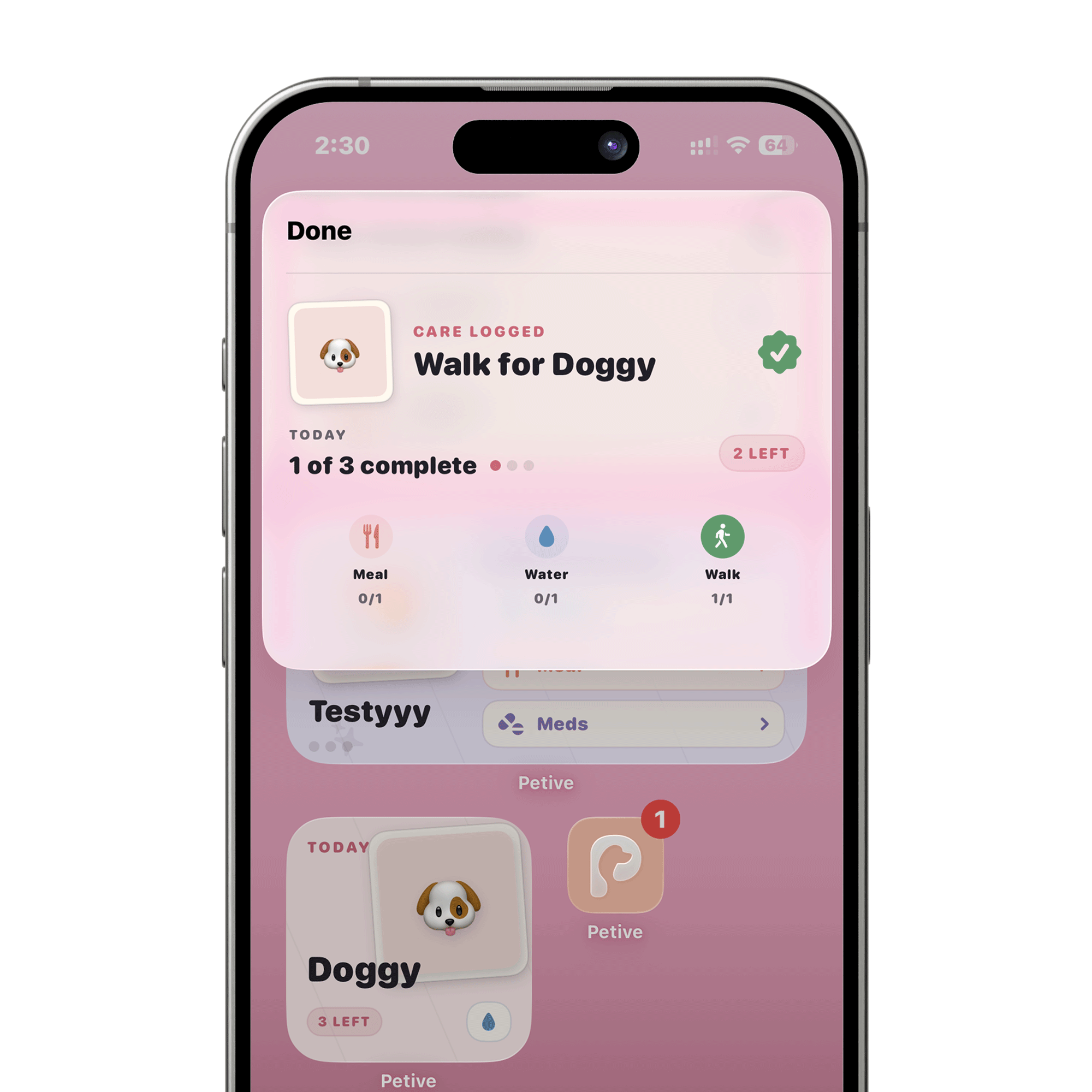
Open Apple’s Shortcuts app, find Petive actions, choose the pet and supported care activity, then save a shortcut or use the provided Siri phrases.
Before you start
- Petive must be installed and have at least one pet profile.
- Allow Siri or Shortcuts access when iOS requests it.
Steps
Open Apple Shortcuts
Open the Shortcuts app on the iPhone and search the available app actions for Petive.
Choose a Petive action
Select Log Pet Care, Check Pet Care, Today’s Care, or Ask Petive.
Configure the pet and activity
For a logging shortcut, choose the pet and one supported activity: Meal, Water, Walk, Playtime, or Litter / Potty.
Save and test
Add the shortcut, give it a phrase that is easy to remember, and run it once. Check Petive’s Timeline to confirm a logging action was recorded.
What happens next
The shortcut can log supported care, show today’s progress, open the daily plan, or open Petive’s assistant without navigating through the app first.
Good to know
- Medication is intentionally not a Siri quick-log activity.
- A configured shortcut records the selected care type; custom notes and amounts are not captured by voice.
Troubleshooting
Petive does not appear in Shortcuts
Open Petive once, confirm a pet profile exists, then reopen Shortcuts and search for Petive again.