
Everyday routine
Delete a care entry
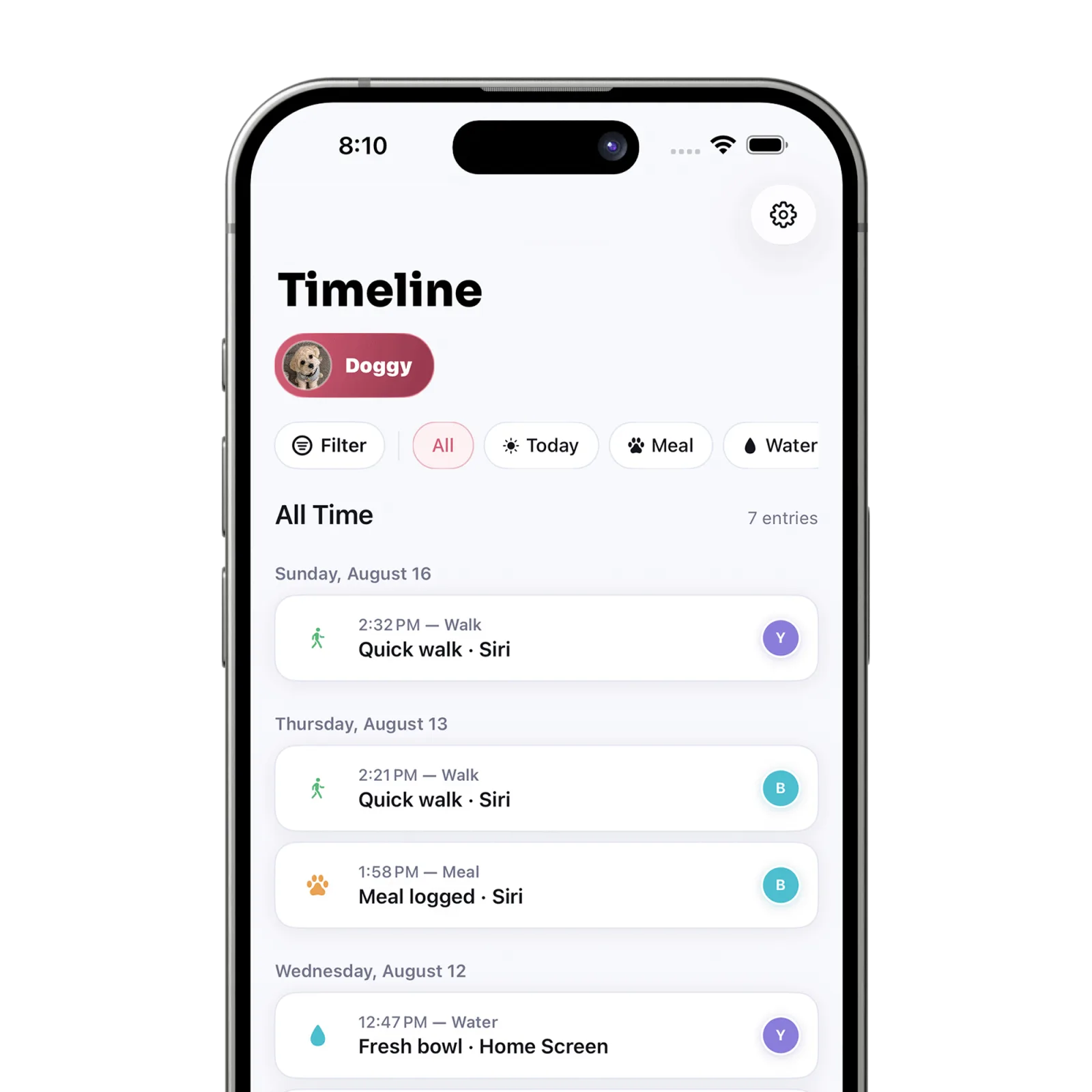
Open Timeline, find the entry, swipe it to the left, and use the red trash action. Deletion removes the entry from the care history.
Steps
Open Timeline
Tap Timeline in the bottom navigation. Use filters first if you need to narrow a long history.
Find the incorrect entry
Confirm the pet, activity, time, and caregiver before removing anything.
Reveal the delete action
Swipe the entry toward the left until the red trash action appears.
Delete the entry
Tap the trash action. The entry is removed and the day’s completion may change if it counted toward a daily goal.
What happens next
The entry no longer appears in the Timeline or contributes to the pet’s daily care progress.
Good to know
- Deletion is not an edit workflow. If the details are wrong, delete the entry and log the corrected care.
- Petive Free limits care history to seven days; locked history cannot be changed from the free plan.
Troubleshooting
The delete action is unavailable
The entry or pet may be outside the editable plan window. Check the active plan and pet access.
Did this answer your question?
All daily care & timeline guides