
Everyday routine
Filter the care timeline
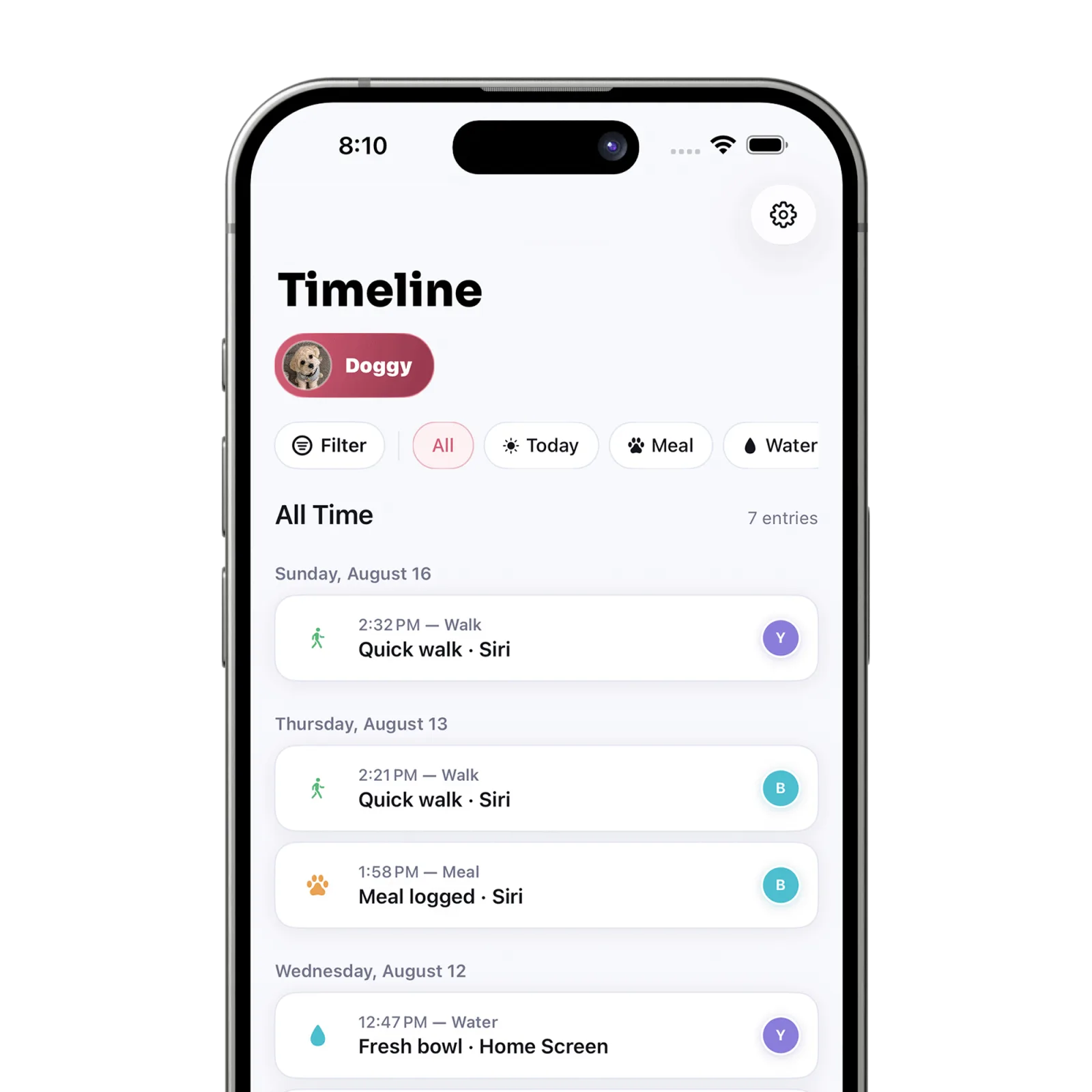
Open Timeline and use the quick chips for All, Today, or an activity. Use Filter for the full set of date, activity, and caregiver choices.
Steps
Open Timeline
Tap Timeline in the bottom navigation.
Use a quick filter
Choose “Today” or an activity chip to narrow the visible entries immediately. Tap a selected chip again to remove it.
Open the full filter
Tap “Filter” to choose a broader date scope, activity, caregiver, or available custom range.
Review the matching entries
Close the filter view and confirm the active chips above the timeline. Use “All” to clear the filters.
What happens next
Timeline shows only entries matching the selected date, activity, and caregiver filters.
Good to know
- The timeline includes Today and This Week filters. Petive does not currently generate weekly reports or trend analyses.
Troubleshooting
No entries match
Choose “All,” then add filters one at a time to find which condition removed the results.
Did this answer your question?
All daily care & timeline guides