
Common fixes
Fix Petive notifications that are not arriving
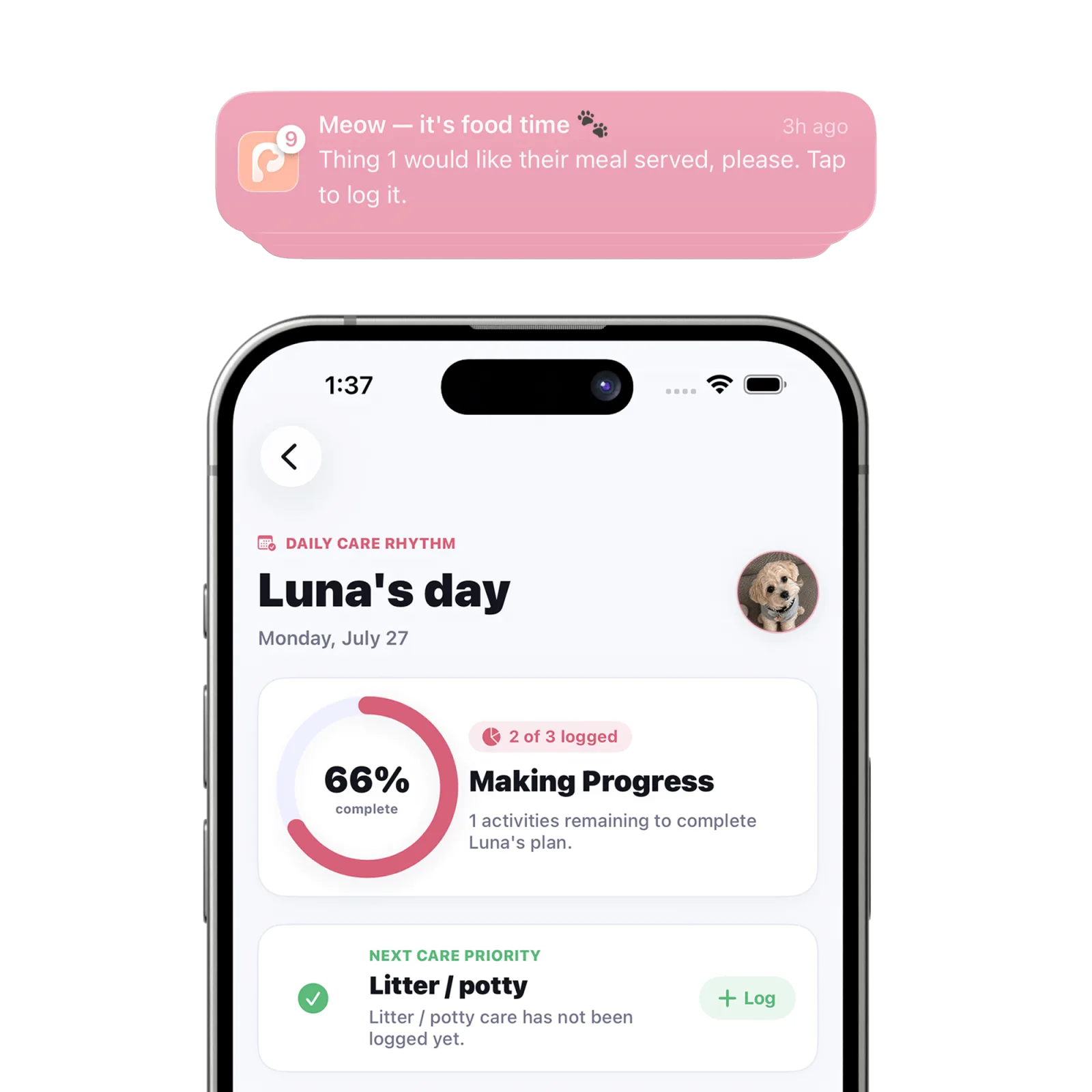
First allow notifications for Petive in iPhone Settings. Then check “Daily Reminders & Push Alerts,” confirm the relevant category and care time are active, and reopen Petive online.
Steps
Check iPhone permission
Open iPhone Settings, find Petive under Notifications, and allow notifications. Also choose the alert locations you want to use.
Check Petive alert categories
In Petive, open Settings & Preferences → “Daily Reminders & Push Alerts.” Confirm the relevant meal, walk, medication, or other alert controls are enabled.
Check Shared Care Schedule
Open “Shared Care Schedule,” select the pet, and confirm the care time is present, set to the expected time and repeat pattern, and marked active.
Reopen Petive while online
A connection lets Petive refresh shared schedules and current account state. Keep the app open briefly after making a change.
Test the next occurrence
Wait for a future scheduled time rather than one that already passed. If needed, create a temporary once-only reminder a few minutes ahead.
What happens next
Eligible reminders are scheduled on the device and appear according to the iPhone notification settings you allowed.
Good to know
- Notification delivery is device-based. Each caregiver must enable notifications on their own iPhone.
- Focus modes, Scheduled Summary, Low Power Mode, and iOS delivery decisions can affect when an alert is visible.
Troubleshooting
Only one caregiver receives alerts
Check permission and Petive settings separately on every caregiver’s iPhone.
An old reminder still appears
Open Petive online so current schedules can synchronize, then review or remove the outdated care time.